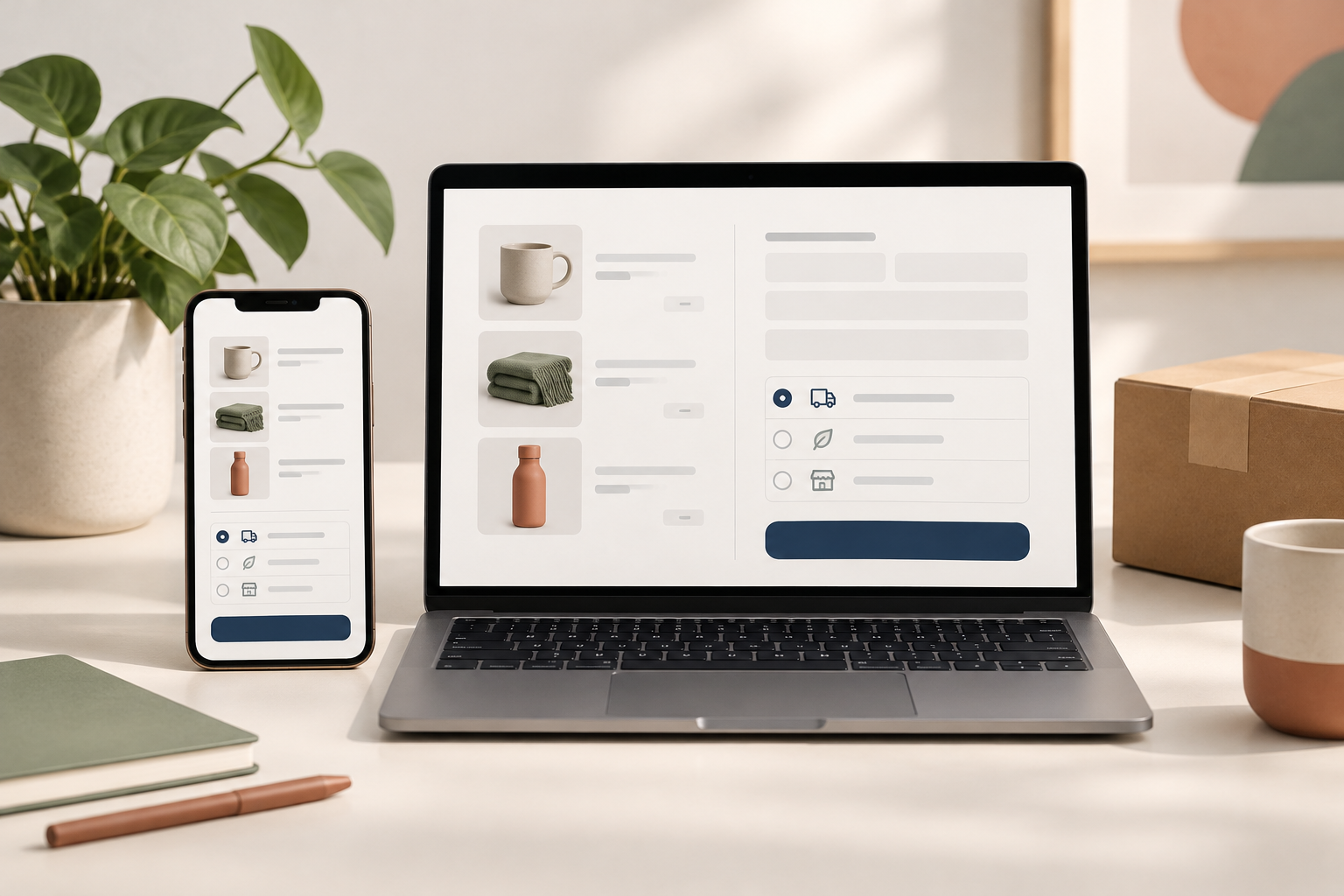
Someone has found your product, chosen an option, and added it to their basket. Then checkout asks them to create an account, reveals an unexpected delivery charge, or rejects their address without explaining why. WooCommerce checkout optimization is about removing those avoidable obstacles—not pressuring people to buy.
For a small business, the best starting point is usually not a complete checkout rebuild. It is a careful review of what customers see, what they must enter, and what happens when something goes wrong.
This guide walks through the changes worth checking first, how to test them safely, and which technical details can quietly undermine an otherwise attractive store.
Start with a real order journey
Before changing anything, open your store on a phone and complete the journey from a product page to checkout. Use a private browsing window so your saved account details do not hide problems a new customer would encounter.
Choose a typical product, select any variations, and check delivery to an address in your normal service area. Note every moment that makes you pause.
Look for questions such as:
- Can I see the likely delivery cost before entering all my details?
- Is it obvious whether I need an account?
- Does the order summary show the correct product, variation, and quantity?
- Can I recover easily from a mistyped postcode or declined payment?
- Is the final amount clear before I place the order?
If you already have analytics, review the path from adding to cart through checkout and purchase. Check that those events actually fire correctly before trusting the report. Consent settings, blocked scripts, and payment redirects can create measurement gaps.
Use analytics to locate a possible problem, then reproduce it yourself. A funnel report alone cannot explain why someone left.
1. Make guest checkout the straightforward option
Requiring an account adds a commitment before the customer has completed their purchase. For many ordinary retail stores, guest checkout is the simpler default.
In WooCommerce, review Settings → Accounts & Privacy for guest checkout and account creation options. Exact labels can vary by version and configuration.
A sensible arrangement is to:
- Allow purchases without an account where your business model permits it.
- Keep sign-in available for returning customers.
- Offer account creation without making it dominate the page.
- Explain any genuine reason an account is required.
Memberships, subscriptions, or restricted wholesale stores may need different rules. Check the requirements of those extensions before changing account settings.
Do not assume that enabling guest checkout makes the page clear. Read the actual wording on mobile. A large login panel above a small guest form can still make account creation look compulsory.
2. Explain delivery costs before the final step
A checkout cannot fully compensate for missing information earlier in the journey. If customers discover delivery restrictions or substantial charges only after filling in the form, the uncertainty started before checkout.
Where practical, show shipping information on product pages and provide a delivery estimate or calculator in the basket. Explain free-shipping thresholds and any relevant exclusions near the offer.
For example, a store selling fragile homeware might explain that delivery is calculated by destination and that certain remote locations require a separate quote. That is more useful than a vague “shipping calculated later” message.
Check the underlying WooCommerce settings too:
- Do shipping zones cover the locations you advertise?
- Are more specific zones ordered appropriately before broader ones?
- Do shipping classes produce the intended rates?
- Does a free-shipping coupon work under the conditions you describe?
- Are tax displays consistent with your configuration and local requirements?
If an address has no available delivery method, provide a clear next step. Do not leave the customer facing an unexplained dead end.
3. Ask only for information you actually need
Every required field should have a business, delivery, payment, or legal reason to exist.
For a straightforward consumer order, a required company name is usually unnecessary. A phone number may be needed by your courier, but if it is not, consider whether it should be optional. Explain unusual requests beside the field rather than making customers guess.
Be careful with address changes. Removing a state, postcode, or billing field can interfere with shipping calculations, tax rules, payment verification, or international orders.
Before editing fields, identify your checkout type:
- Checkout Block: use settings or extensions that explicitly support the block-based checkout.
- Classic shortcode checkout: some traditional hooks and field-editing tools apply here but will not work the same way with blocks.
Avoid copying an old PHP snippet without checking compatibility. Make changes on staging, then test every affected payment and delivery method.
The goal is not the fewest fields at any cost. It is the fewest fields that still support a reliable order.
4. Treat mobile usability as a checkout requirement
A checkout that looks tidy on a desktop monitor can become exhausting on a phone. Long forms, overlapping banners, and awkward error messages are easier to miss when reviewing a design at full width.
Test on a real device, not just a resized browser window. Check that:
- Labels remain visible while customers type.
- Fields and buttons are comfortable to tap.
- Email and telephone fields open appropriate mobile keyboards.
- Browser autofill works without putting information in the wrong fields.
- Cookie notices, chat widgets, and sticky headers do not cover controls.
- Text remains readable without zooming.
- The payment button is easy to find after an error.
Use visible labels rather than relying only on placeholder text, which disappears as someone types. Make errors specific: “Enter a valid postcode for your selected country” is more useful than “Invalid input.”
Also navigate using a keyboard. A customer should be able to reach fields, select delivery, and submit payment without needing a mouse. Accessibility is part of a usable checkout, not an optional visual enhancement.
5. Offer suitable payments—and test failure states
Start with payment methods your customers can actually use in the markets you serve. More options are not automatically better if they add clutter, maintenance, or unreliable integrations.
Digital wallets can reduce typing on supported devices. However, wallet availability may depend on the browser, device, payment gateway, and required domain verification. Check your gateway’s documentation rather than assuming a wallet will appear everywhere.
Test more than a successful card payment. Using your provider’s official sandbox or test mode, check:
- A declined payment.
- Any supported additional authentication flow.
- A return from an off-site payment provider.
- A retry after an unsuccessful attempt.
- Correct payment and order-status updates.
A failed payment should explain what the customer can do next without erasing the entire form.
For gateways that use webhooks, confirm those notifications reach your store. A payment can succeed at the provider while WooCommerce fails to receive the update, leaving the order in the wrong state.
6. Remove distractions without removing reassurance
Checkout should help someone complete the order they have already chosen. This is rarely the best place for a full-screen newsletter popup or a carousel of unrelated products.
Keep the page focused while preserving useful reassurance:
- A readable order summary.
- Clear delivery options and totals.
- Access to returns, privacy, and terms information.
- A simple way to get help.
- Accurate payment information.
Avoid decorative trust badges that imply certifications or protections you do not have. Specific, truthful information is stronger than generic claims such as “100% secure.”
If your store needs a broader WordPress website redesign, include checkout in the design scope. A polished homepage cannot rescue an ordering flow that feels inconsistent or confusing.
7. Keep checkout fast without breaking its behaviour
Checkout speed involves more than compressing images. The page may rely on live shipping quotes, payment scripts, tax calculations, and server requests that update the order total.
Investigate delays individually. Does the page load slowly, or does it pause only after someone changes their address? Those symptoms can have different causes.
Check that your caching setup handles WooCommerce correctly. Cart, checkout, and account pages generally need exclusion from full-page caching, and customer-specific sessions must not be served from a shared cache. Review both your WordPress cache and any hosting or CDN cache.
Be cautious with settings that delay or combine JavaScript. They can interfere with payment fields, wallet buttons, or order-total updates. Retest checkout after performance changes, even when the homepage looks fine.
Remove unnecessary checkout scripts where you can do so safely. A social feed or animation library may have no useful role here.
For persistent issues, our development and optimization services can help identify whether the bottleneck is the theme, an extension, hosting, or an external service.
8. Use a repeatable checkout test plan
A single successful order is not enough to validate a checkout. Build a small test checklist around the combinations your business actually supports.
| Scenario | What to confirm |
|---|---|
| New guest customer | No unexpected account requirement |
| Returning customer | Login and saved details behave correctly |
| Mobile purchase | Fields, totals, and payment controls stay usable |
| Valid delivery address | Correct shipping methods and charges appear |
| Unsupported destination | Clear explanation and next step appear |
| Coupon or promotion | Discount and delivery rules match the offer |
| Failed payment and retry | Helpful error, preserved details, no unintended duplicate order |
| Successful purchase | Correct confirmation, order status, and customer email |
Add product-specific cases where needed: subscriptions, downloadable products, mixed baskets, or products with different shipping classes.
Use staging for development, but isolate it from live payments, customer emails, and fulfilment integrations. A staging copy should not accidentally dispatch an order or trigger a real customer automation.
After deployment, verify the live environment too. Follow your gateway’s guidance for a controlled live transaction if necessary, accounting for possible fees and fulfilment effects. Confirm that stock changes and integrations behave as expected.
9. Prioritize fixes instead of changing everything
Group findings into three practical levels:
Fix first: broken purchasing. Payment errors, missing shipping methods, unusable mobile controls, and incorrect totals need attention before cosmetic changes.
Fix next: avoidable friction. Unnecessary account requirements, unclear delivery information, excessive fields, and vague error messages belong here.
Refine later: presentation. Spacing, visual hierarchy, button styling, and optional enhancements matter, but they should support a working flow.
Where possible, change one meaningful element at a time and record the deployment date. Review completed purchases alongside failed payments, support enquiries, and checkout errors. A higher completion rate is not useful if orders are being recorded incorrectly.
Small stores may not have enough purchases for a reliable A/B test. In that case, prioritize reproducible usability problems and cautious before-and-after monitoring. Account for promotions, traffic sources, and seasonal changes before attributing a result to your edit.
A better checkout starts with fewer obstacles
The strongest checkout improvements are often straightforward: explain costs earlier, ask for less unnecessary information, make errors recoverable, and verify that payments work on real devices.
Start with one test purchase, write down the friction, and fix the most consequential problem first. You do not need a new plugin for every issue.
Want a second pair of eyes on your store? Sophia brings the design perspective, while Saleem reviews the development and technical setup. Request a free website audit, and tell us where customers seem to get stuck.